
To work with a Teamboard, click “Boards” in the ribbon on the left side. The team board opens automatically, and you’ll see all open tasks, i.e., those with the status “planned,” “active,” or “review.” The columns are also grouped by week, due date, and executor. This view is ideal for keeping track of what the team has coming up in the next few weeks.
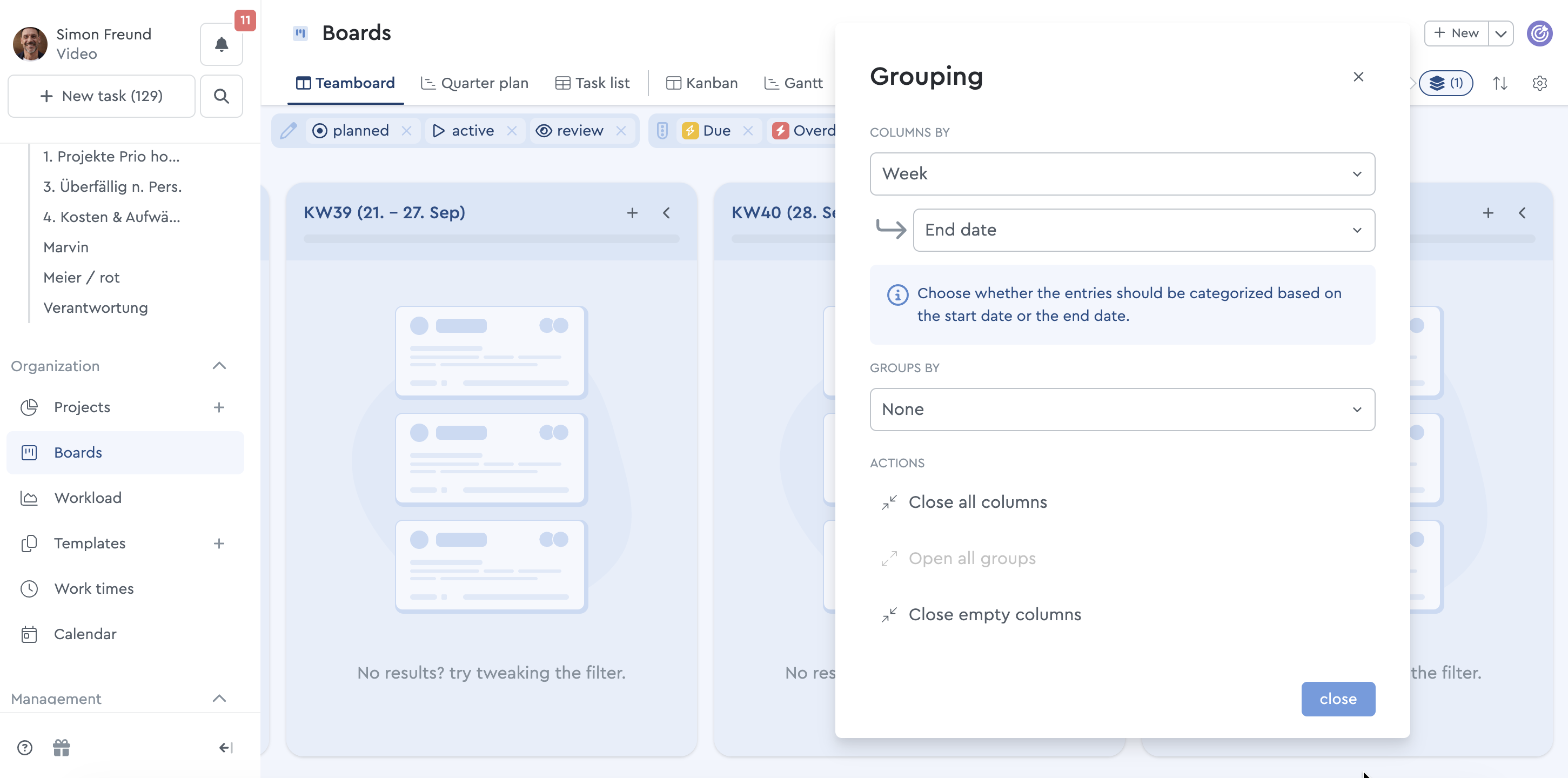
If you only want to view tasks that are at risk or overdue, you can use the “Critical” quick filter. To get an immediate side-by-side overview of all team members, you can change the column grouping from “Week & Due Date” to “Executor”. This view gives you a quick overview of critical tasks for all team members.
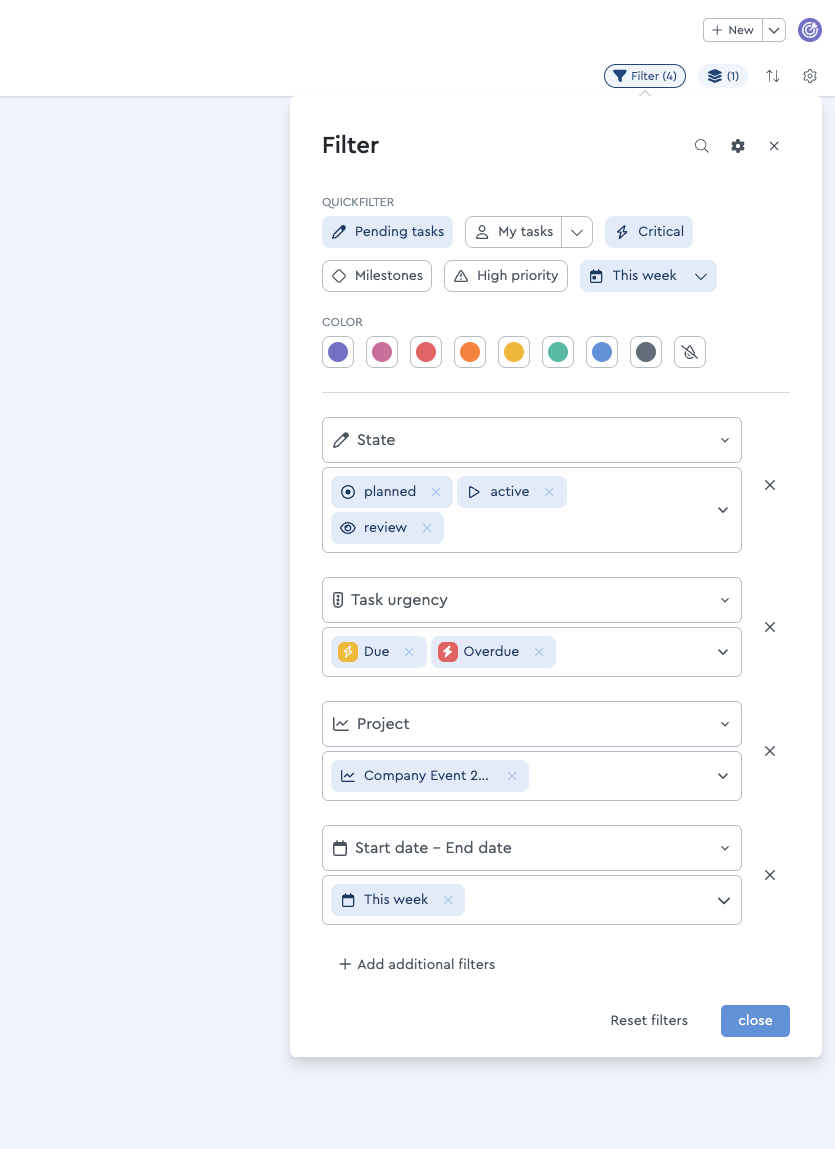
If your team assigns specific tags to tasks, you can also filter by them. Example: The marketing team has a meeting every Monday; for tasks related to that meeting, create the tag “Team Meeting.” Now activate “Open Tasks” in the filter, click “+ Add More Filters,” and then select “Tags” and “Team Meeting.” You’ll now see all the tasks that are important for the meeting.
One of your team members is sick, and you need to reassign tasks? The workload overview can give you an insight into available resources as a first step. You can then move the tasks around on the team board. To do this, sort the columns by the person assigned to each task and group the view by “Project.” This way, you can see which tasks from a project are assigned to a specific person and move them using drag-and-drop as needed.